本文最后更新于 2026-04-05T00:56:49+08:00
🎯 前言
作为 Windows 用户,你是否羡慕 Linux/macOS 用户那些漂亮的终端?是否厌倦了黑底白字的单调 PowerShell?
本文将带你从零开始,打造一个颜值与效率双双在线的终端环境:

📋 最终效果预览
配置完成后,你的终端将拥有:
- ✨ 彩色提示符 - 用户名、路径、Git 分支、执行时间一目了然
- 🎨 文件图标 -
ls 命令显示文件/文件夹专属图标
- 💡 智能预测 - 灰色文字预测你要输入的命令
- 🔍 历史搜索 - 输入部分命令按
↑↓ 快速搜索历史
- 🚀 Git 集成 - 自动显示分支状态和文件改动
实际效果:
1
2
3
4
| ┌─────────────────────────────────────────────────────────┐
│ xiaoshitou ~ main ≢3 ~1 0.25s │
│ ❯ │
└─────────────────────────────────────────────────────────┘
|
🛠️ 环境准备
必须安装的软件
| 软件 |
用途 |
安装命令 |
| PowerShell 7 |
现代化 Shell |
winget install Microsoft.PowerShell |
| Windows Terminal |
终端模拟器 |
Microsoft Store 搜索安装 |
| Nerd Font |
图标字体 |
oh-my-posh font install JetBrainsMono |
检查 PowerShell 版本
1
2
| $PSVersionTable.PSVersion
|
🚀 安装步骤
Step 1: 安装 Oh My Posh
1
| winget install JanDeDobbeleer.OhMyPosh
|
安装后重启终端,使环境变量生效。
Step 2: 安装 PowerShell 模块
1
2
3
4
5
|
Install-Module Terminal-Icons -Scope CurrentUser -Force
Install-Module posh-git -Scope CurrentUser -Force
|
Step 3: 安装 Nerd Font 字体
1
2
3
4
5
|
oh-my-posh font install JetBrainsMono
oh-my-posh font install Meslo
|
⚠️ 重要:安装后需在 Windows Terminal 设置中选择该字体!
Step 4: 下载主题文件
1
2
3
4
5
6
7
|
mkdir "$HOME\.config\oh-my-posh" -Force
Invoke-WebRequest `
-Uri "https://raw.githubusercontent.com/JanDeDobbeleer/oh-my-posh/main/themes/jandedobbeleer.omp.json" `
-OutFile "$HOME\.config\oh-my-posh\theme.omp.json"
|
⚙️ 配置 PowerShell Profile
找到 Profile 路径
创建 Profile 文件
1
2
3
4
5
|
mkdir "$HOME\Documents\PowerShell" -Force
code $PROFILE
|
完整配置代码
1
2
3
4
5
6
7
8
9
10
11
12
13
14
15
16
17
18
19
20
21
22
23
24
25
26
27
28
29
30
31
32
33
34
|
$ompTheme = "$HOME\.config\oh-my-posh\theme.omp.json"
oh-my-posh init pwsh --config $ompTheme | Invoke-Expression
Import-Module PSReadLine
Set-PSReadLineOption -HistorySearchCursorMovesToEnd
Set-PSReadLineKeyHandler -Key UpArrow -Function HistorySearchBackward
Set-PSReadLineKeyHandler -Key DownArrow -Function HistorySearchForward
Set-PSReadLineOption -PredictionSource History
Set-PSReadLineOption -PredictionViewStyle ListView
Set-PSReadLineKeyHandler -Key Tab -Function MenuComplete
Import-Module Terminal-Icons -ErrorAction SilentlyContinue
Import-Module posh-git -ErrorAction SilentlyContinue
Set-Alias ll Get-ChildItem
Set-Alias which Get-Command
Set-Alias grep Select-String
Write-Host "🚀 PowerShell 美化环境已加载!" -ForegroundColor Green
|
🎨 配置 Windows Terminal
设置默认启动 PowerShell 7
打开 Windows Terminal(Ctrl + ,)→ 设置 → 打开 JSON:
1
2
3
4
5
6
7
8
9
10
11
12
| {
"defaultProfile": "{574e775e-4f2a-5b96-ac1e-a2962a402336}",
"profiles": {
"defaults": {
"font": {
"face": "JetBrainsMono NF",
"size": 11
}
}
}
}
|
常用 GUID 对照表:
| 名称 |
GUID |
| PowerShell 7 |
{574e775e-4f2a-5b96-ac1e-a2962a402336} |
| Windows PowerShell 5.1 |
{61c54bbd-c2c6-5271-96e7-009a87ff44bf} |
| Command Prompt |
{0caa0dad-35be-5f56-a8ff-afceeeaa6101} |
🎭 主题推荐
Oh My Posh 内置了上百款主题:
| 主题名 |
预览 |
特点 |
| jandedobbeleer |
 |
经典多行显示,信息丰富 ⭐推荐 |
| catppuccin |
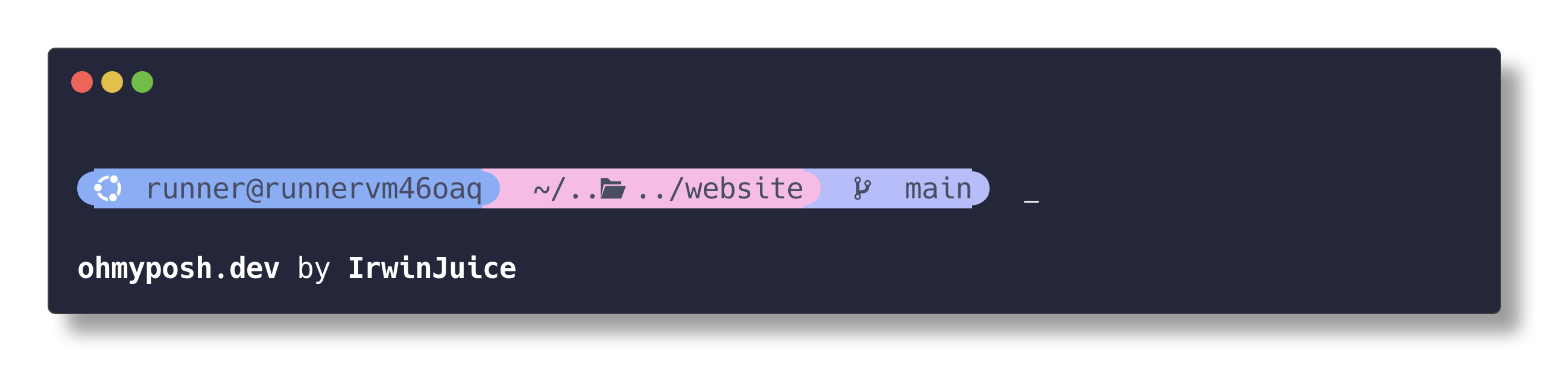 |
柔和马卡龙配色,护眼 |
| powerlevel10k |
 |
类似 Zsh 风格 |
| nord |
 |
北欧冷淡色调 |
| quick-term |
 |
单行极简设计 |
切换主题
1
2
3
4
5
|
$ompTheme = "$HOME\.config\oh-my-posh\nord.omp.json"
oh-my-posh init pwsh --config "https://raw.githubusercontent.com/JanDeDobbeleer/oh-my-posh/main/themes/nord.omp.json" | Invoke-Expression
|
🛠️ 进阶技巧
自定义函数
在 Profile 中添加实用函数:
1
2
3
4
5
6
7
8
9
10
11
12
13
14
15
16
17
18
19
20
21
22
|
function dirsize {
param([string]$Path = ".")
Get-ChildItem $Path -Recurse -ErrorAction SilentlyContinue |
Measure-Object -Property Length -Sum |
Select-Object @{N="Size(MB)"; E={[math]::Round($_.Sum/1MB, 2)}}
}
function proj { Set-Location "C:\Projects" }
function desk { Set-Location "$HOME\Desktop" }
function empty-trash {
Clear-RecycleBin -Force -ErrorAction SilentlyContinue
Write-Host "🗑️ 回收站已清空" -ForegroundColor Green
}
function myip {
(Invoke-WebRequest -Uri "api.ipify.org" -UseBasicParsing).Content
}
|
环境变量设置
1
2
3
4
5
6
7
8
|
$env:EDITOR = "code"
$env:PAGER = "less"
$env:NODE_MIRROR = "https://npmmirror.com/mirrors/node"
|
❓ 常见问题
Q1: 提示 “CONFIG NOT FOUND”
原因: 主题路径错误
解决:
1
2
3
4
5
|
Test-Path "$HOME\.config\oh-my-posh\theme.omp.json"
$ompTheme = "C:\Users\$env:USERNAME\.config\oh-my-posh\theme.omp.json"
|
Q2: 图标显示为方块 □
原因: 字体不支持
解决:
- 安装 Nerd Font:
oh-my-posh font install JetBrainsMono
- Windows Terminal 设置 → 外观 → 字体 → 选择
JetBrainsMono NF
- 重启终端
Q3: 预测提示不显示
原因: Windows Terminal 版本过旧
解决:
1
2
3
4
5
|
winget list Microsoft.WindowsTerminal
winget upgrade Microsoft.WindowsTerminal
|
Q4: 启动速度很慢
原因: 加载在线主题时网络延迟
解决: 使用本地主题文件(推荐)
Q5: 如何恢复默认?
1
2
3
4
5
|
Remove-Item $PROFILE
|
📊 快捷键速查表
| 快捷键 |
功能 |
↑ / ↓ |
历史记录搜索 |
→ |
接受预测建议 |
Tab |
菜单补全 |
Ctrl + r |
反向搜索历史 |
Ctrl + l |
清屏 |
Ctrl + c / Ctrl + v |
复制/粘贴 |
🎉 结语
现在你已经拥有了一个专业级的终端环境!每次打开终端都是视觉享受,开发效率也会大大提升。
如果本文对你有帮助,欢迎点赞收藏,也欢迎在评论区交流你的配置心得!
参考链接:
💡 小贴士:配置完成后记得备份你的 Profile 文件,换电脑时直接复制即可!